
Auckland Die Cut Sticker - Create Outlines in Illustrator to setup file for Die Cut stickers

Setting up a file for die cut stickers – how to create outlines in Illustrator
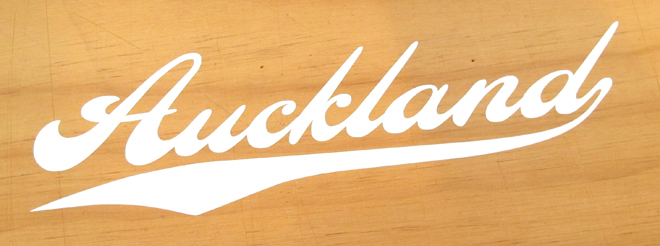
Creative Sticker design is important – but the actual artwork behind your sticker is even more important! In this post we are going to show you how to make a design file so that we can create a vinyl die cut ‘Auckland’ sticker. They secret ingredient for sticker success is to create outlines of your text.
Looks great doesn’t it? Let us show you how to get it done – it’s a pretty important part of the sticker making process 😉
Adobe Illustrator – our sticker design progam of choice
Adobe Illustrator is a great program for design. We receive files for printing and cutting stickers everyday in this format, but a lot of them are missing one simple thing – text converted to outlines.
For the best results, we need to have all fonts converted so that we can cut or print your sticker to the highest quality. Converting the fonts to outlines also means that we don’t need to have your font on file – and means we don’t make spollang miztakez by accident…
Converting your fonts to outlines using Adobe Illustrator
Step 1 – choose your font
The first step to making this sticker, is to choose your font and subject. For this sticker, we will choose the word Auckland, because we live here, and the font is a great one for stickers called LHF Ballpark Script. You can find a good similar free font HERE, but you will have to create your own swoosh.
Type out the word Auckland, and rotate it slightly to get the angle needed in order to replicate the classic ballpark style.

Step 2 – Create outlines
With the word selected, right click on the text, and in the drop down menu over the sticker click CREATE OUTLINES. You can also go to type/create outlines.

Step 3 – View outlines
If you go to View/outline (cmd/y), you can see the exact cut path that the knife will take to cut this Vinyl Die Cut Sticker. All of the lines will cut – which is a problem for our sticker as we don’t want the overlapped parts to cut out, just the outline of the whole word. We also want to add a nice baseball swoosh to this logo.

Step 4 – Customise your sticker
First we will add the swoosh. Using the LFH Baseball Swash font, that comes as part of the package, we select the swash we want. Move it to place, and then create outlines again so that the swash is an outline. Make sure that you customise this part of the sticker using the direct selection tool to make it a little wider and longer. You can also leave the outline view so that you can line up the join of the swash and the letter D perfectly.

Step 5 – Merge outlines
To get rid of the overlapped lines on our sticker, select all the outlined letters, and then in the pathfinder tool click MERGE. This joins all the outlines of the letters together to make one shape. Essential for what we are going to do with this!

Step 6 – Preview design
Click view/preview (or cmd/y), and you will see that the image looks exactly the same as if you hadn’t merged all the outlines – but now that you are smarter you know better…!

Step 7 – Order your sticker
All that is left is to send your sticker design to us so we can make sweet Auckland sticker magic using our fancy cutter.
Step 8 – Apply your sticker
Once the sticker is cut, (and you have it delivered), apply carefully and revel in your creative genius. Well, not really as it’s hardly an original idea now is it…..
If you’re the sort of person who would rather watch a video, head to our youtube channel and watch our tutorial on how to create outlines. You can also check out our artwork guidelines page for more information.